Settings
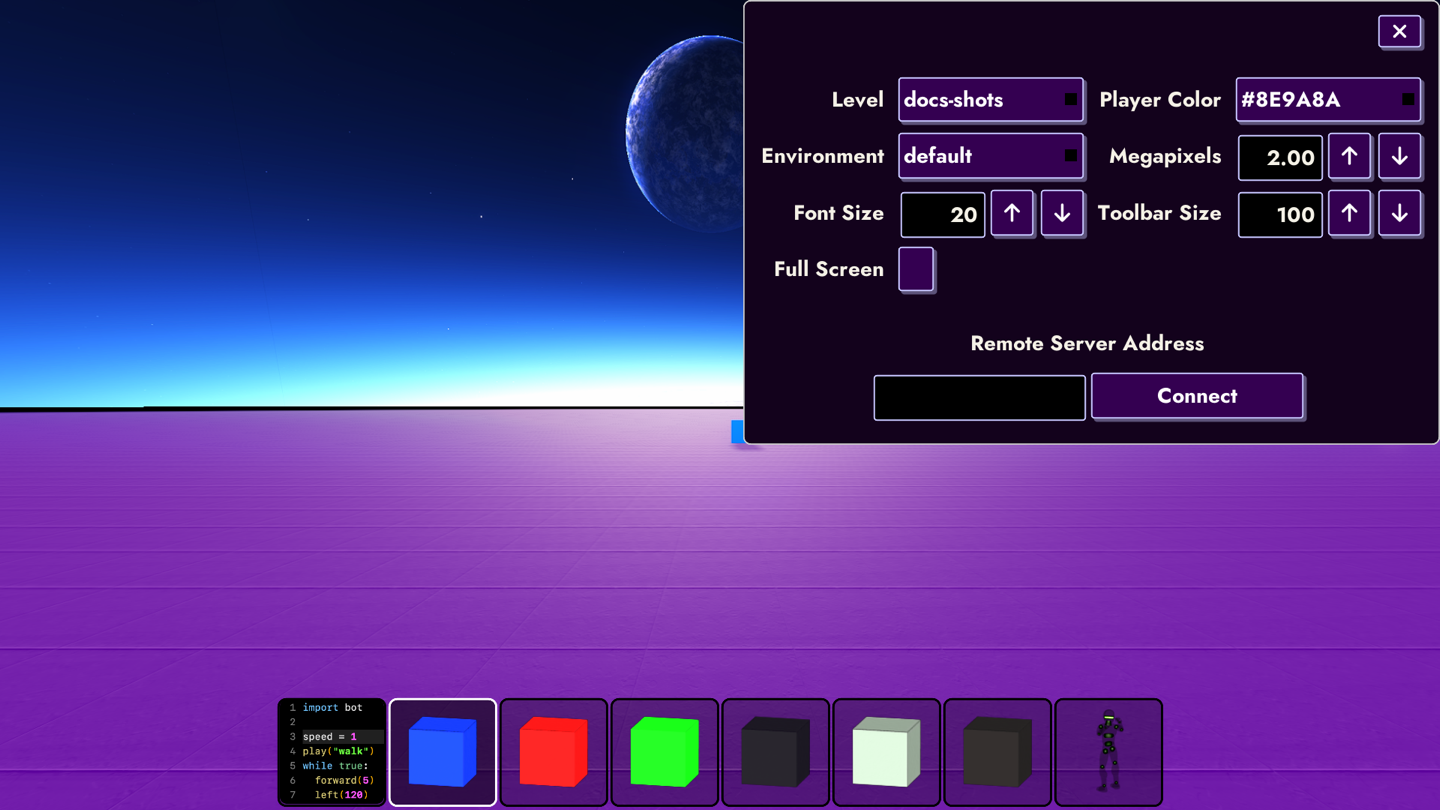
Open the settings panel with the gear button in the corner of the screen (on macOS it's also in the menu bar). It slides open and holds everything you can change without editing the config file by hand.
Levels
The Levels dropdown lists every level in your current world. Pick one to jump straight to it. Choosing New... lets you name and create a fresh level to build in. Your worlds are kept separate, so you can have one for experiments and one for your masterpiece.
Player Color
The color of your character in multiplayer. Enu picks a random color for you the first time it launches, so everyone in a shared world looks different. Use this dropdown to change it to any of Enu's built-in colors.
Environment
Changes the scenery and lighting around you. default is the usual purple
world, but there are others to try: gb gives everything a Game Boy tint,
noir goes hazy black and white, and strange is, well, strange. Switching is
instant, so flip through them and see which you like.
Full Screen
Toggles between filling the whole screen and running in a window.
Megapixels
How sharp the world looks. Higher is crisper but asks more of your computer. Lower is blurrier but runs faster. If things ever feel choppy, turn this down a notch. Use the arrows to step through sensible values.
Font Size
How big the text is in the code editor and console. Nudge it up or down with the arrows.
Toolbar Size
How big the tool icons are along the bottom of the screen.
Connect
To join someone else's world, type their address into Remote Server Address and press Connect. Connecting or disconnecting restarts Enu. See the Multiplayer page for how to host a world of your own.
Note
Every setting here writes to the same config.json described on the
Config page, so anything you change in the panel sticks around
next time you launch Enu. A few options (like movement speeds and mouse
sensitivity) only live in the config file for now.